
 English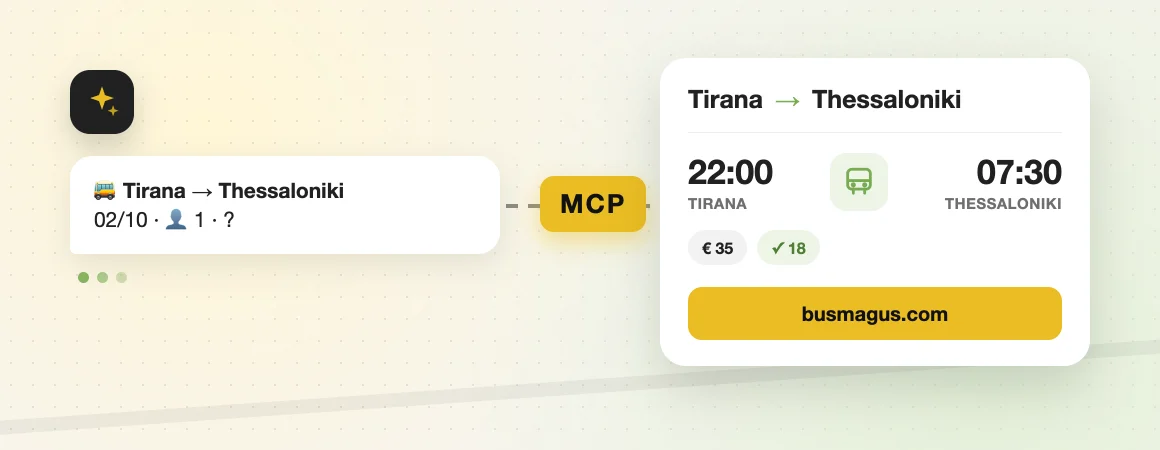
Ask your AI about buses: our MCP server is now open to everyone
A lot of people now start planning a trip by asking an AI assistant. You type something like "is there a bus from Tirana to Thessaloniki on Friday?" and hope for a useful answer. Until recently that answer was usually a polite guess, an old timetable found somewhere online, or a suggestion to go and check the operator's website yourself. We thought that was a shame, so we did something about it.
We have built and launched an MCP server for BusMagus, and anyone can use it for free. MCP stands for Model Context Protocol. It sounds technical, but the idea is simple. It is an open standard that lets AI assistants like Claude, ChatGPT, Perplexity and Gemini talk to outside services and ask them real questions. Think of it as giving your assistant a direct line to our timetable, so it can call and ask instead of guessing.
Why we built it
Our job is to help people find and book coaches across the Balkans and Europe, and more and more of those people ask their AI first. If the assistant can't see our departures, it can't tell anyone about them, and travellers end up with half answers. We wanted every assistant to be able to say, with confidence, that yes, there is a coach at 22:00, it arrives at 07:30, it costs this much and there are still seats left. We also wanted it to be honest when there is no bus, instead of inventing one.
How it works
When you connect our server to your assistant, it gets four simple tools. One finds cities in any language or spelling, so Selanik, Solun and Thessaloniki all end up in the same place. Another searches the departures between two cities on a given date and brings back the real times, the fare per adult, how many seats are left, the operator and a link to book. A third answers general questions about a route, like how long the trip takes, the usual price range, the luggage rules and whether you can cancel or change your ticket. The last one lists the stations we serve, with their addresses and a link to each station's timetable. Your assistant picks the right tool on its own, so you just talk to it the way you normally would.
Everything it sees is the same information our website shows, and it comes from the same place, so the answers never disagree with busmagus.com. It can only read, never change anything. There is no account to create, no key to copy and no personal data involved, and it cannot book or pay on your behalf. When you like a departure, the assistant gives you a link that opens the checkout of that exact coach on our site, and you finish the booking there as usual, seeing the final price before you pay.
What you get out of it
The biggest benefit is simply better answers. You can plan a whole trip in one conversation, ask things like "anything earlier?" or "what about Sunday?", and compare options without opening ten tabs. It works in whatever language you and your assistant speak. For travel agents, bloggers and anyone building their own AI helpers, it is a reliable source of live coach data that costs nothing to plug in.
Connecting it to Claude
In Claude, open Settings and go to Connectors. Choose the option to add a custom connector, give it a name such as BusMagus and paste https://busmagus.com/mcp as the address. Save it, switch the connector on in a new chat and ask about a bus. That is really all there is to it.
Connecting it to ChatGPT
In ChatGPT, open Settings and look for Apps and Connectors. Depending on your plan, you may need to turn on Developer mode in the advanced settings before custom connectors show up. Create a new connector, paste https://busmagus.com/mcp as the server address, choose no authentication and save. Then select it in a conversation and ask your question.
Connecting it to Perplexity
Perplexity added custom connectors to its paid plans this year. Open Settings, go to Connectors and add a custom connector. Choose the remote option, type a name, paste https://busmagus.com/mcp as the address and set the authentication to none. Before you ask anything, enable the connector in the thread you are using, otherwise Perplexity won't know it is allowed to use it.
Connecting it to Gemini
In the Gemini web app, open Settings, then Connected Apps, and under custom apps choose to add a new one with https://busmagus.com/mcp as the server address. Google is rolling this out slowly, and for now it only works for personal accounts in some countries and languages, so don't worry if you can't see the option yet. If you use the Gemini command line tool, you can add the same address to its settings file today.
Plenty of other tools speak MCP too, including Claude Desktop, Cursor and Visual Studio Code. In most of them you add a new MCP server, give it a name and paste the same address. If a tool asks for a configuration file, all it needs is the name BusMagus and the address https://busmagus.com/mcp. App menus change often, so the buttons may be named a little differently from what we describe here, but the idea stays the same.
A few things worth knowing
The server is free and open to everyone, and it answers up to 60 requests a minute per person, which is far more than any normal conversation needs. Fares and seats are live at the moment your assistant asks, but the checkout on busmagus.com always has the final word. If you are a developer who wants to sell our tickets on your own website or app, our partner API is the better fit, and you can read about it on our Partners and Distribution page. And if something doesn't work the way you expect, just write to us at support@busmagus.com and we will take a look.